

Test Connect locally
Create a hosted Connect Session from your terminal, copy the returned URL into a browser, and complete platform OAuth without writing backend code first.
A pending Connect Session from POST/v1/connect/sessions. The script prints the hosted URL your user opens to authorize a social account.
The script never prints OAuth codes, platform access tokens, or refresh tokens. UniPost stores the connected account and returns status through the session API.
Before you start
| Value | Where to get it | Notes |
|---|---|---|
UNIPOST_API_KEY | Dashboard -> Developer -> API Keys | Create or copy a workspace API key. Store it as an environment variable before running the script. |
PROFILE_ID | Dashboard -> Profile | Open the Profile page for the brand or workspace profile that should own the connected social account. Copy the Profile ID shown on that page. |
PLATFORM | Choose the platform you want to test | youtube, tiktok, linkedin, instagram, threads, pinterest, twitter, or facebook. |
1. Get your Profile ID
The fastest path is the dashboard: open Dashboard -> Profile for the profile you want to test, then copy the Profile ID shown on the page. The same ID also appears in profile-scoped dashboard URLs such as /projects/16202f3f-0c3c-4b92-afae-177f279c692a/profile.
If you prefer API lookup, call GET /v1/profiles with your workspace API key:
2. Download the local test script
Download create_connect_session_url.py into the directory where you want to run the local test. The script only uses the Python standard library. Use https://dev.unipost.dev while testing from development docs; switch UNIPOST_DOCS_ORIGIN to https://unipost.dev after the page is released to production.
3. Create a session to connect a social media account
Set your API key, profile ID, and target platform, then run the script. The example uses --allow-quickstart-creds so a workspace without uploaded platform credentials can still test against UniPost's shared OAuth app. Remove that flag when you intentionally want the test to require your workspace Platform Credentials.
4. Expected local result
A successful run prints a pending session summary and a Connection session URL. Copy this URL into your browser. The browser opens UniPost Hosted Connect first, then sends the user to the selected platform's OAuth consent flow.
5. Complete OAuth in the browser
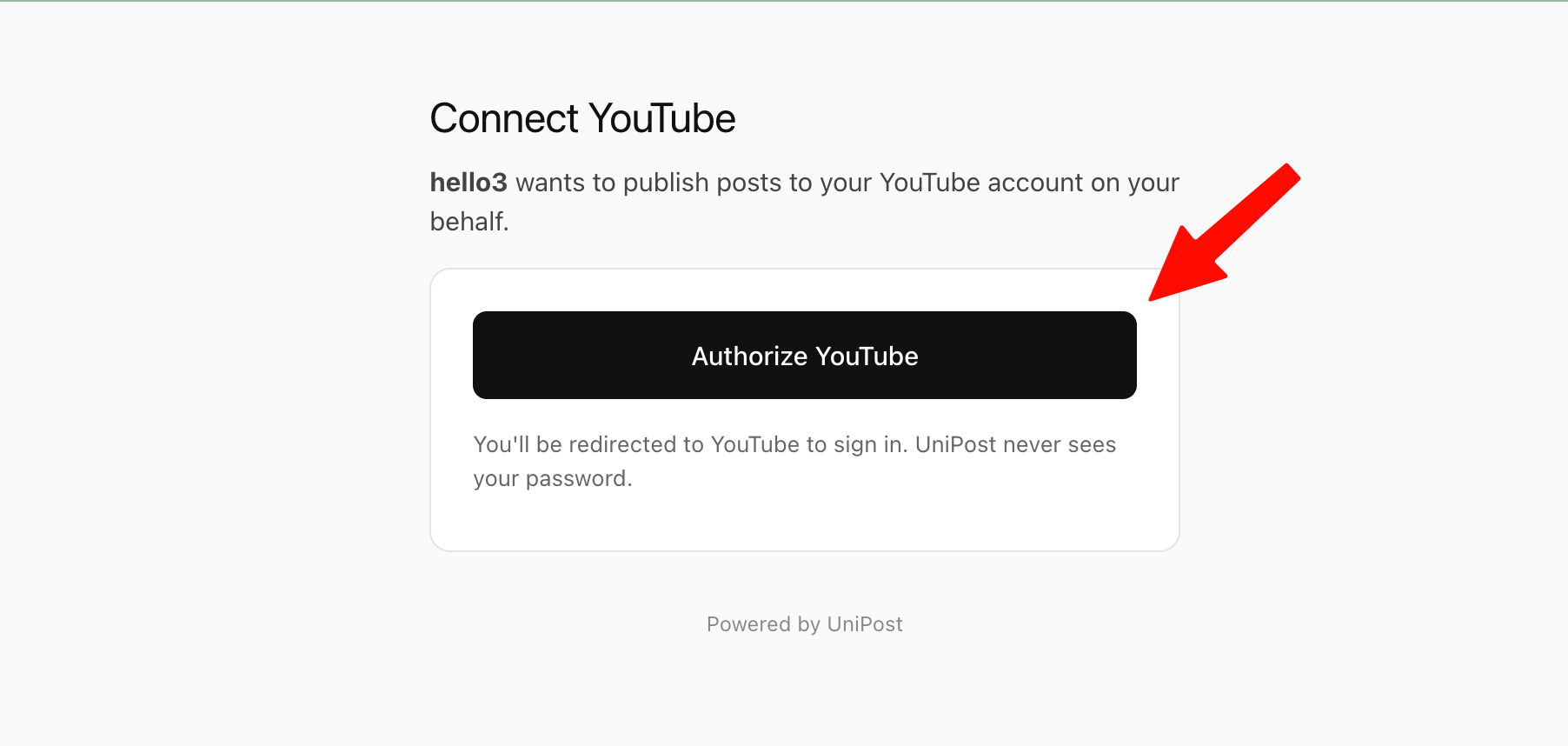
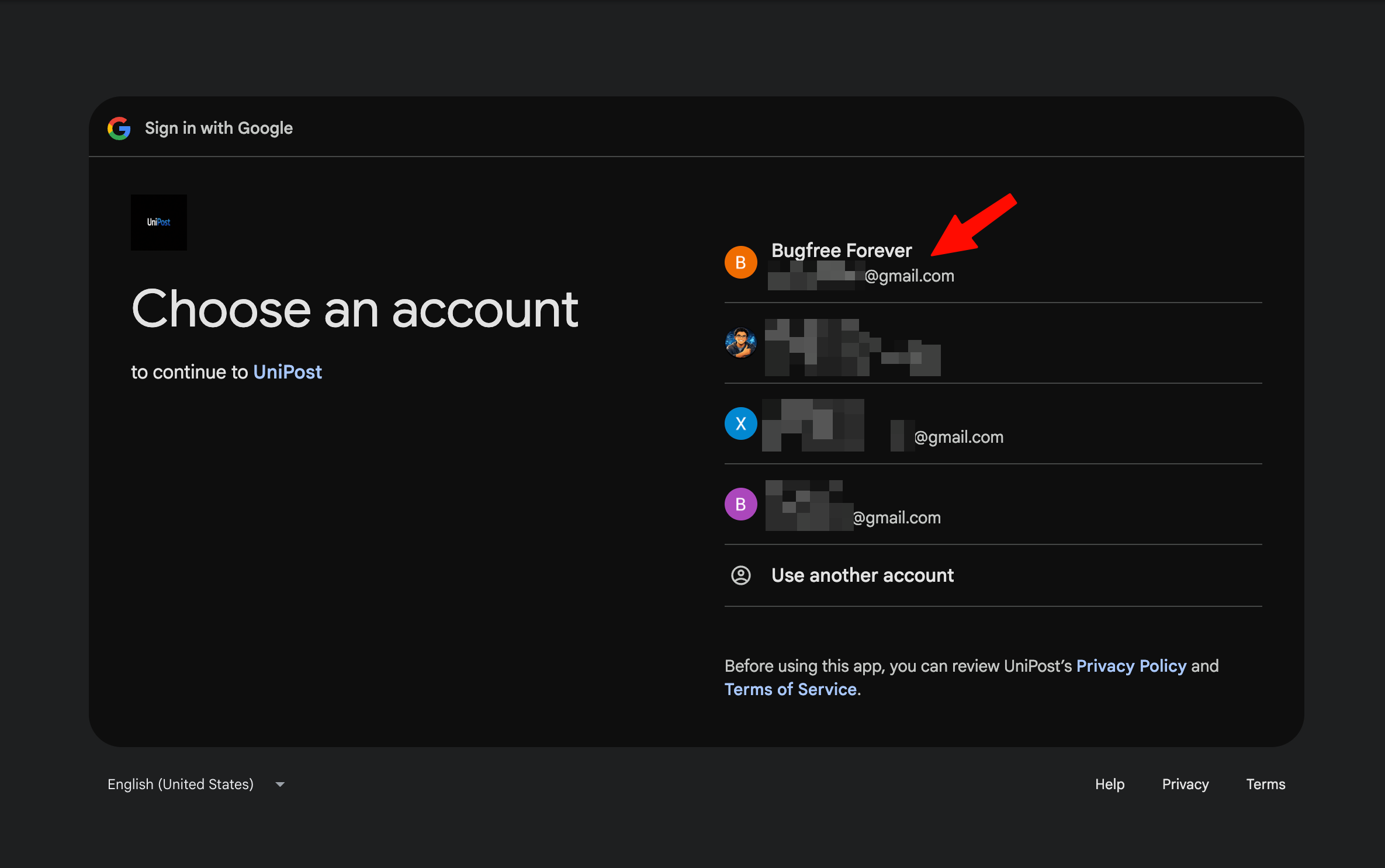
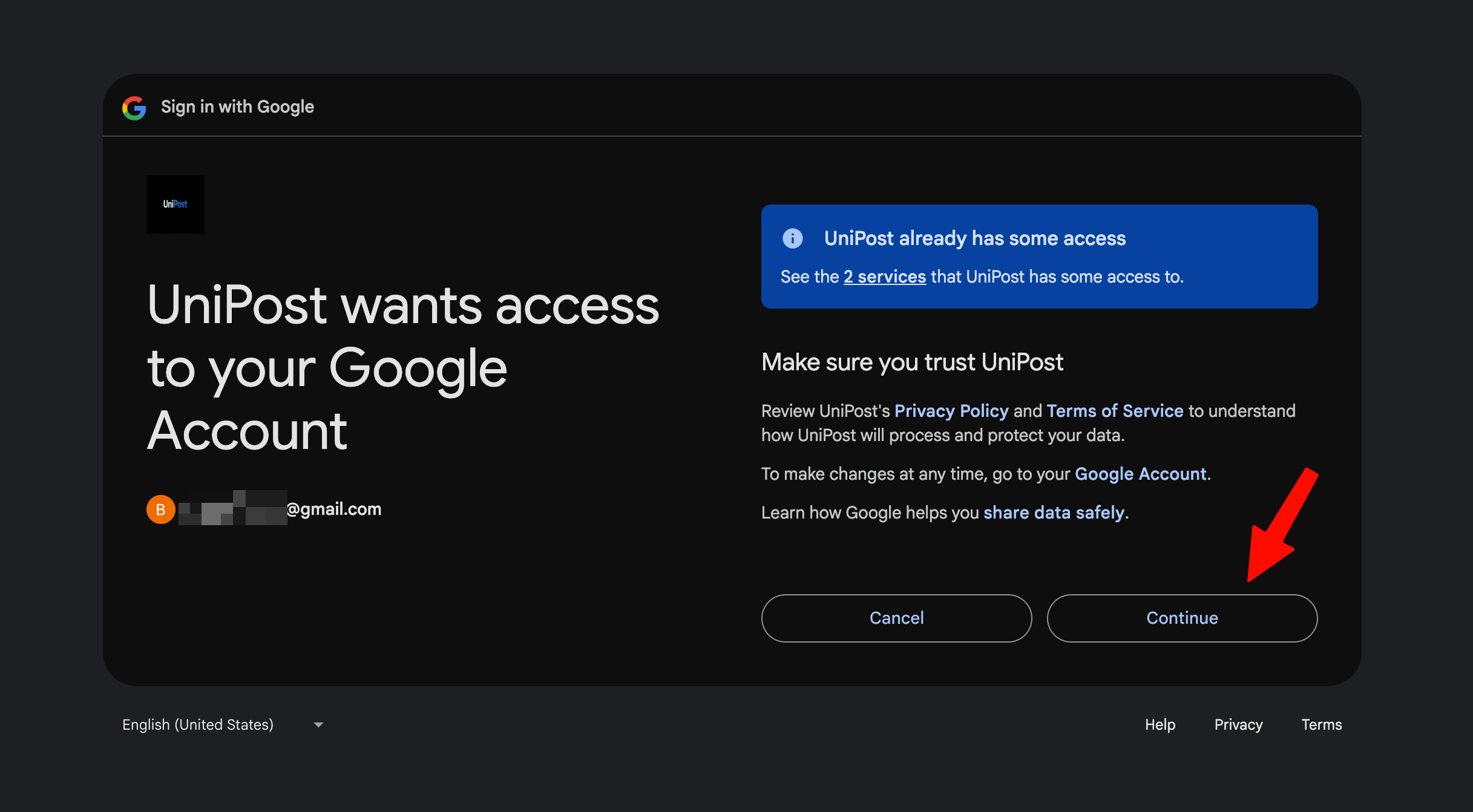
The screenshots below show the browser flow after opening the returned Connection session URL. This example uses YouTube; other platforms follow the same pattern with their own sign-in and consent screens.
- 1Open the Connection session URLThe URL opens UniPost Hosted Connect for the selected platform. Click the authorize button to leave UniPost and start the platform OAuth flow.
- 2Choose the account to connectThe platform asks the user to sign in or choose an existing account. This example uses YouTube, so the account picker is shown by Google.
- 3Approve platform accessReview the requested access and continue. UniPost receives the OAuth callback after the platform authorization completes.
- 4Confirm the connection succeededWhen the browser returns to UniPost, the hosted flow shows the connected state. The connected account now belongs to the profile used in
PROFILE_ID.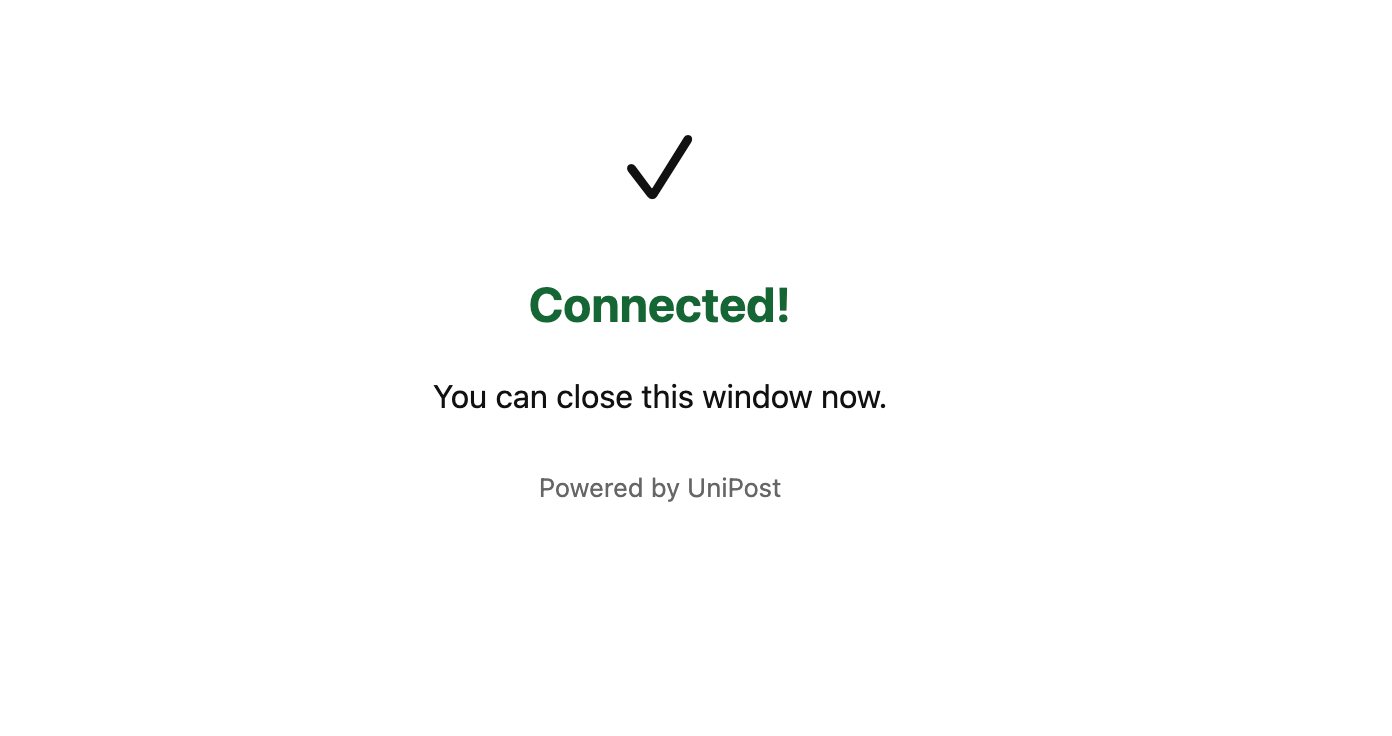
6. After OAuth
Complete the platform authorization in the browser. When OAuth finishes, UniPost records the connected account under the profile you passed in PROFILE_ID. For production integrations, subscribe to the account.connected webhook or poll GET/v1/connect/sessions/:session_id until the session status becomes completed.