

Discord Webhook URL
Create a Discord channel webhook and paste it into UniPost. Three clicks in Discord, one paste in UniPost.
~1 minServer-level onlyOne-time setup
At a glance
| Question | Answer |
|---|---|
| Who needs it | Anyone who wants UniPost alerts in a Discord channel |
| Where the webhook lives | Channel settings → Integrations → Webhooks |
| Expected URL format | https://discord.com/api/webhooks/... |
| Permission required | Manage Webhooks on the target channel |
| Setup time | About 1 minute |
Heads up: UniPost only accepts URLs starting with
https://discord.com/api/webhooks/. Anything else is rejected at save time.Steps in Discord
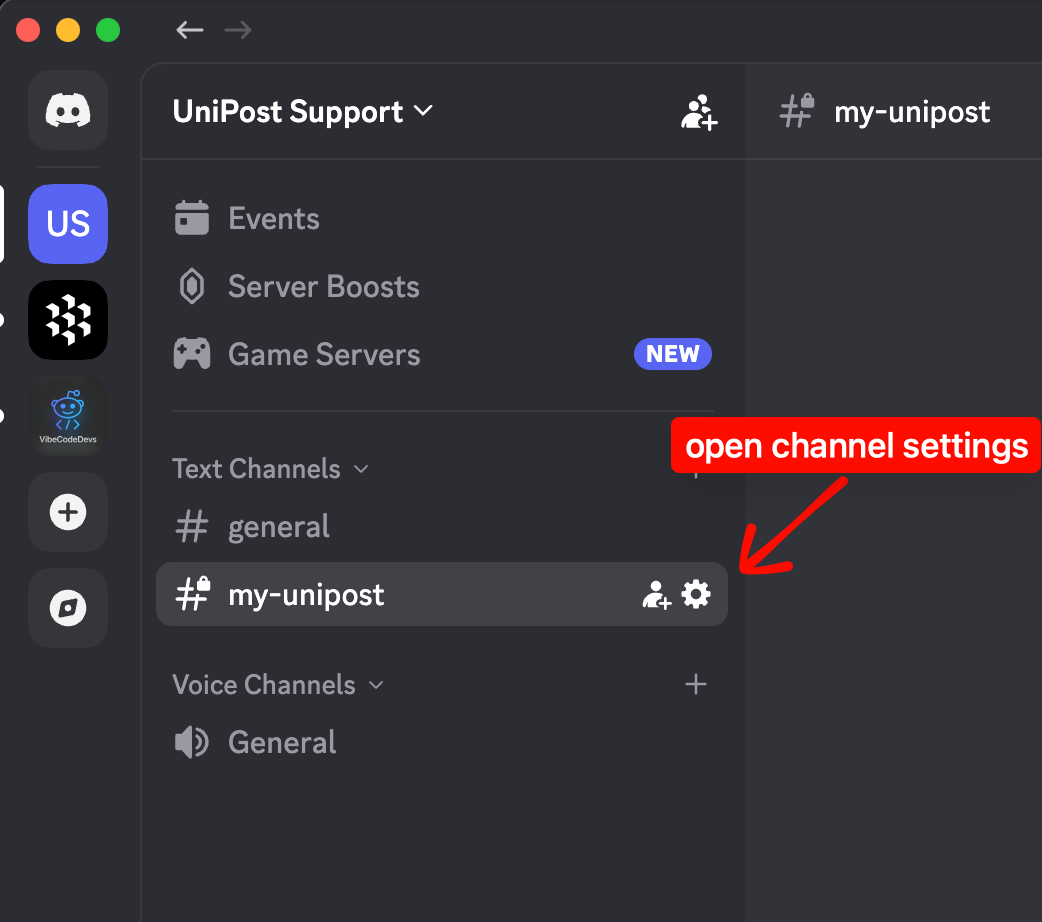
- 1Open the channel settingsOpen Discord, find the text channel that should receive UniPost alerts, hover the channel name, and click the gear icon.
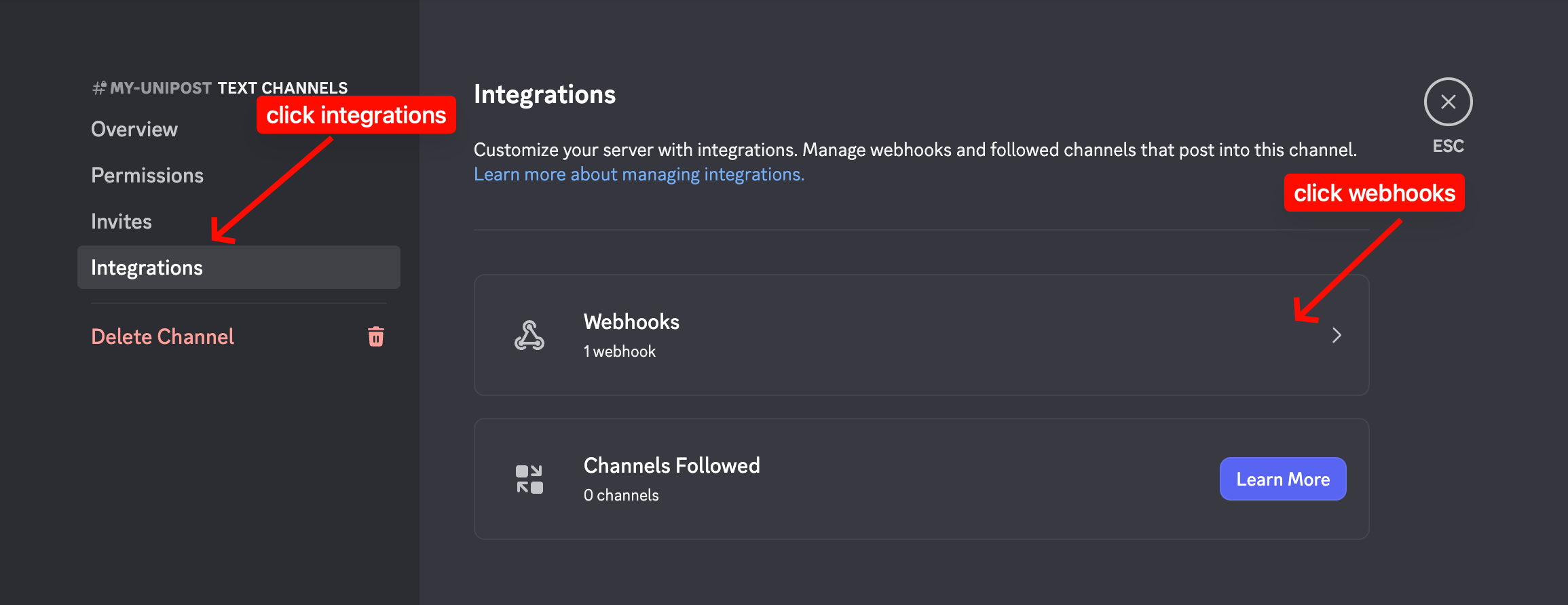
- 2Open Integrations and create the webhookIn the settings sidebar, click Integrations, then Webhooks, then New Webhook.
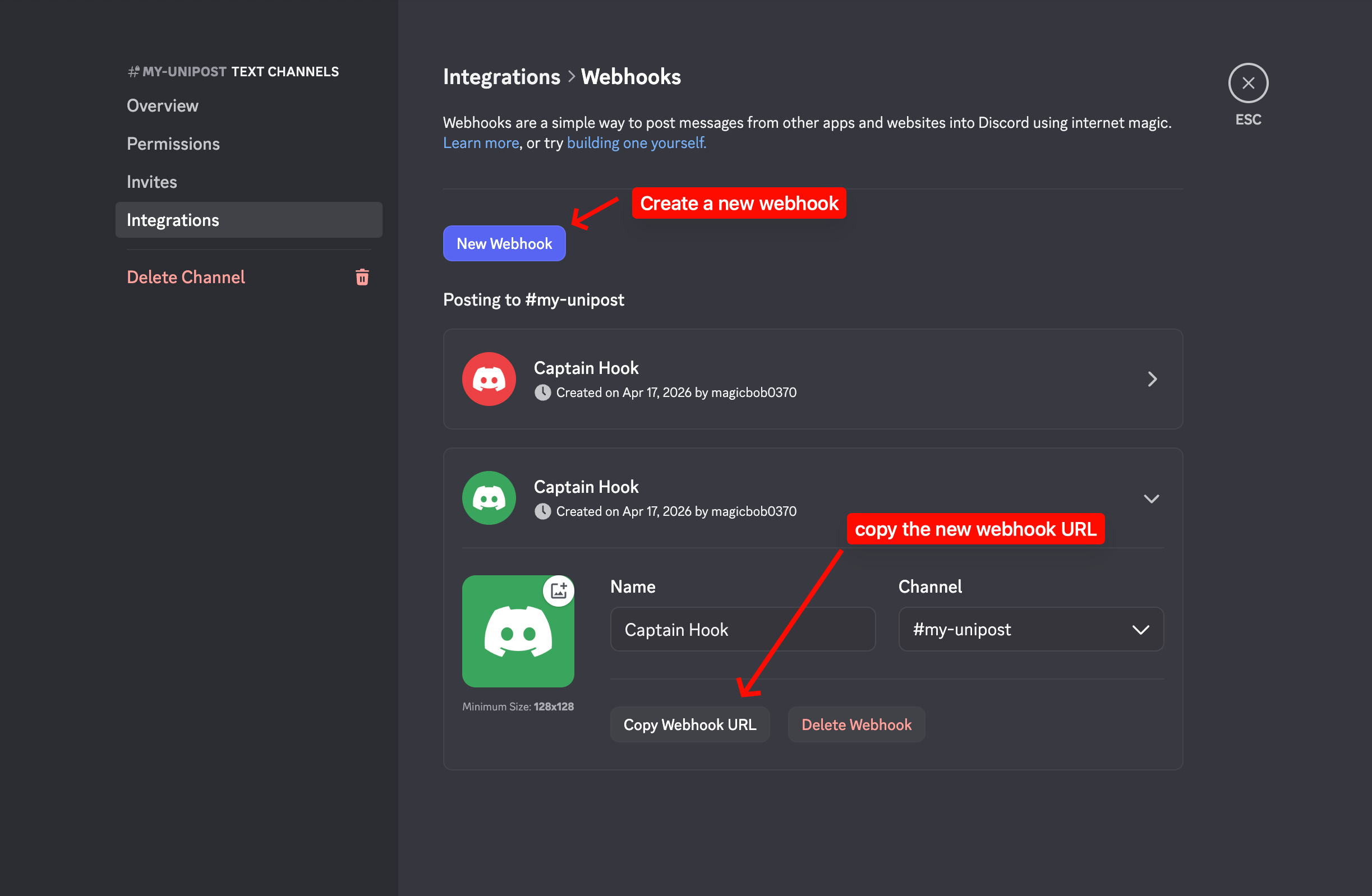
- 3Copy the webhook URLClick the new webhook, optionally rename it, then click Copy Webhook URL.
Paste the URL into UniPost
- Open Settings → Notifications
- Click Add channel → Discord Webhook
- Paste the webhook URL from Discord
- Optional — add a label
- Save, then click Test
Next: after the channel shows as Verified, open the Subscriptions table and turn on the alerts you want.
Troubleshooting
| Symptom | Likely cause | Fix |
|---|---|---|
| UniPost rejects the URL at save | URL does not start with https://discord.com/api/webhooks/ | Copy from the Webhook detail screen — not from a shared message or invite link |
| Channel settings does not show Integrations | You do not have Manage Webhooks on the server | Ask a server admin to grant the permission or create the webhook for you |
| Test delivered but Discord shows nothing | Channel was deleted or the webhook revoked | Regenerate the webhook URL in Discord and paste the new one into UniPost |