

Slack Webhook URL
Create a Slack incoming webhook and paste it into UniPost. Seven clicks in Slack, one paste in UniPost.
~2 minNo admin requiredOne-time setup
At a glance
| Question | Answer |
|---|---|
| Who needs it | Anyone who wants UniPost alerts in a Slack channel |
| Where the webhook lives | A Slack app with Incoming Webhooks enabled |
| Expected URL format | https://hooks.slack.com/services/... |
| Setup time | ~2 minutes total |
| Reversible? | Yes — delete the webhook in Slack or remove the channel in UniPost |
Heads up: UniPost only accepts URLs starting with
https://hooks.slack.com/. Anything else is rejected at save time.Steps in Slack
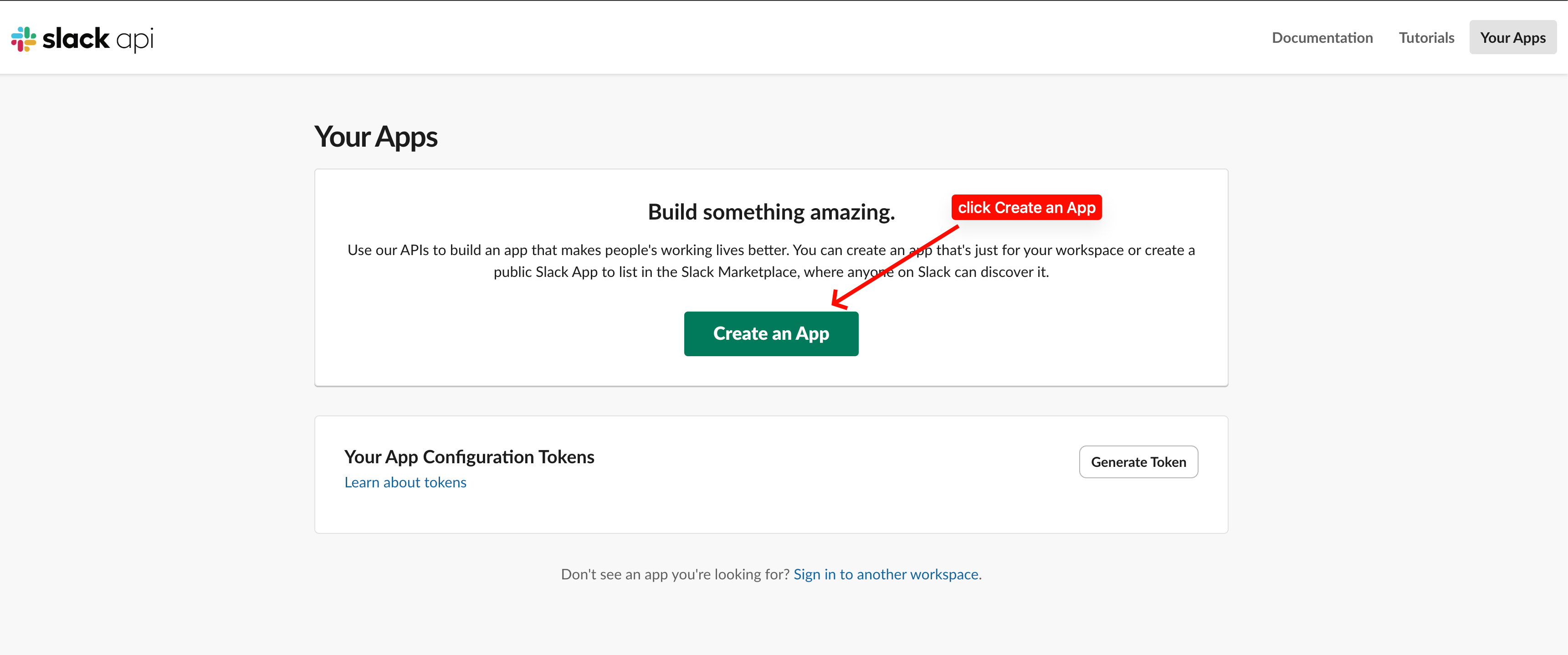
- 1Open Slack apps and create a new appOpen api.slack.com/apps and click Create an App.
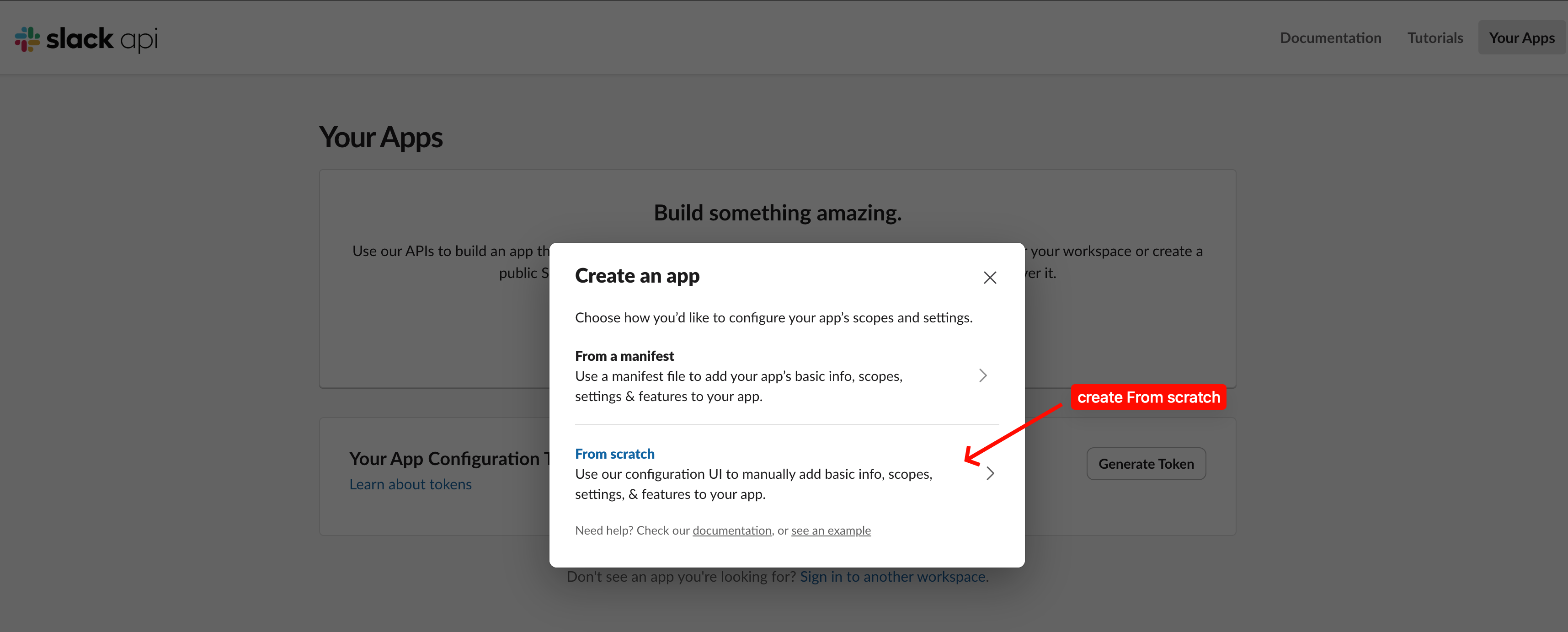
- 2Choose From scratchIn the create-app dialog, choose From scratch.
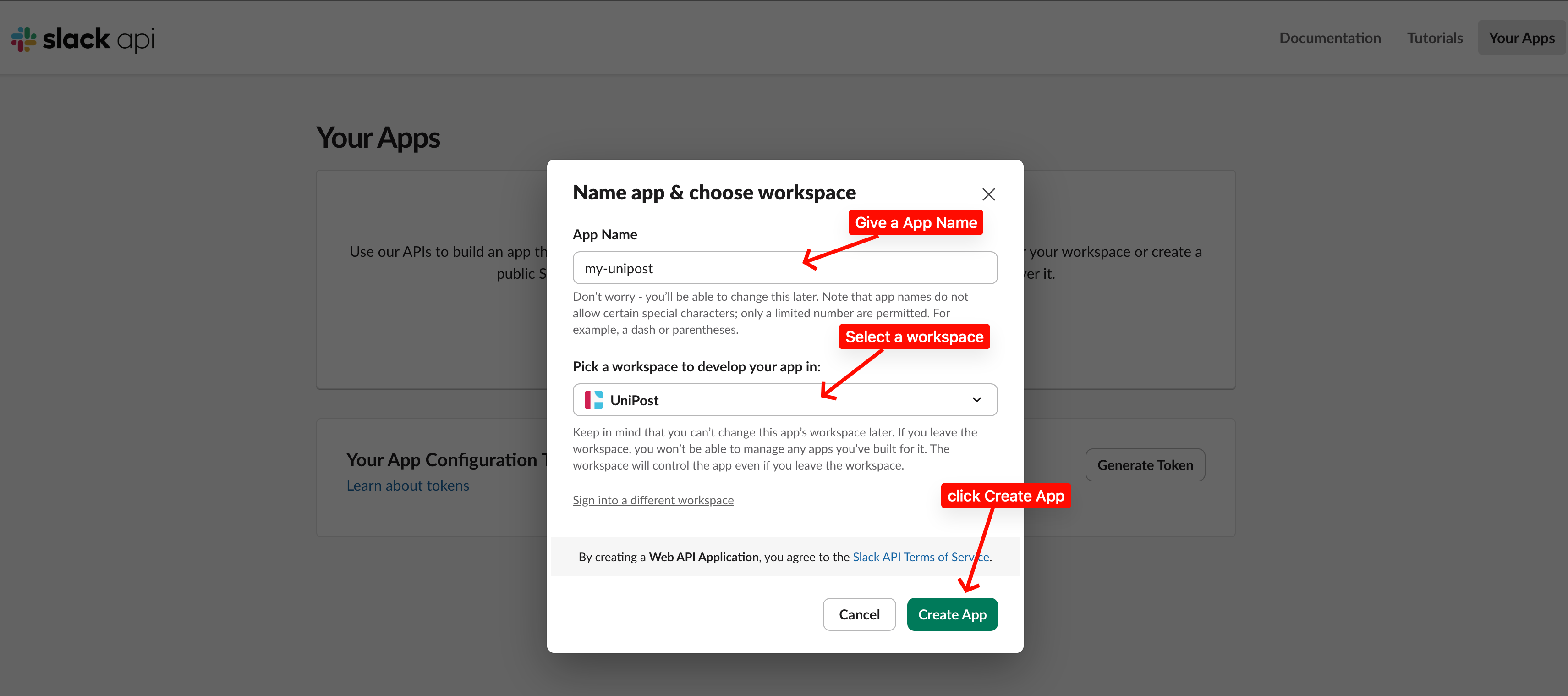
- 3Name the app and choose the workspaceEnter a name, pick the Slack workspace, then click Create App.
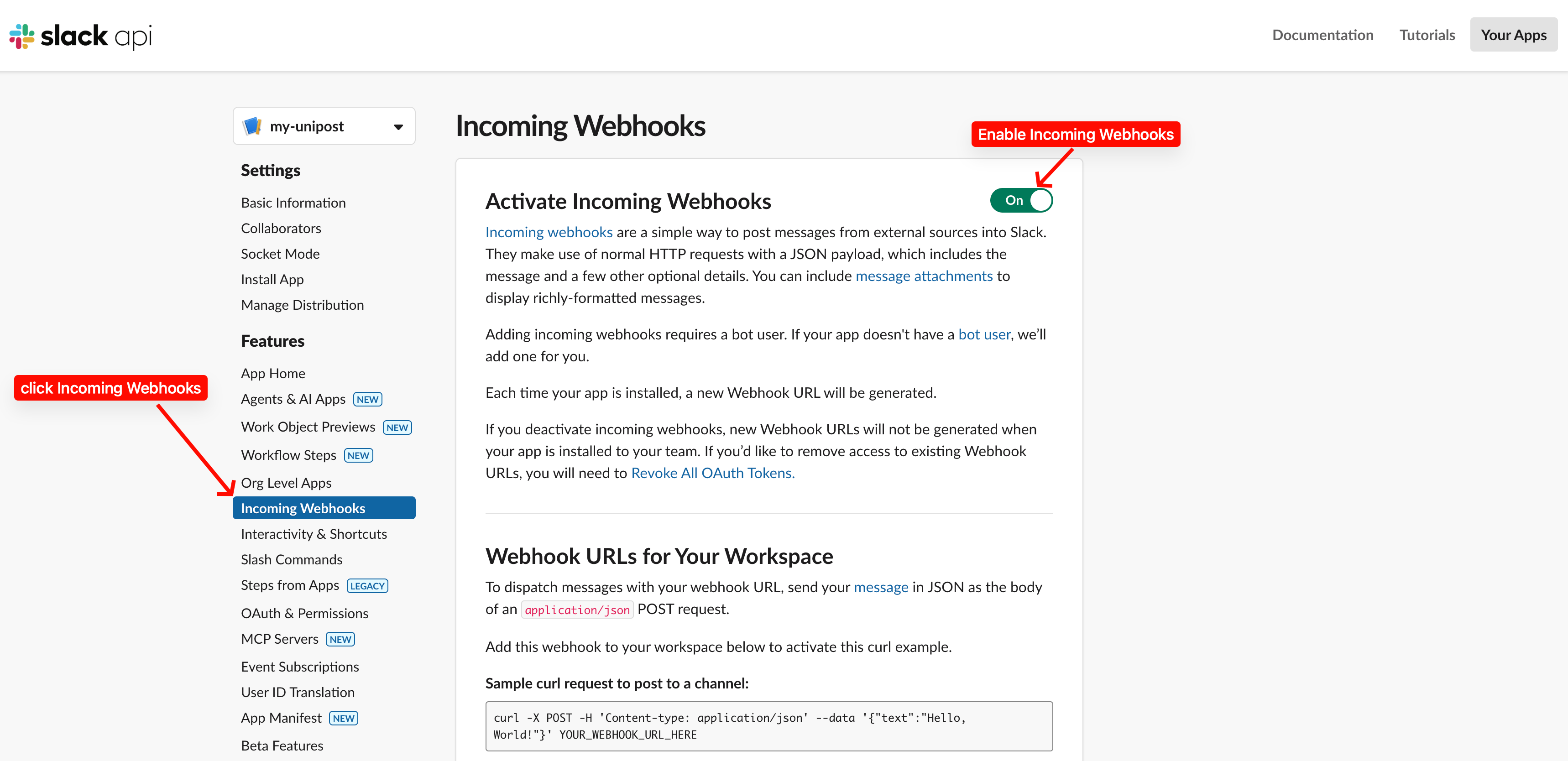
- 4Open Incoming Webhooks and enable itIn the app sidebar, click Incoming Webhooks, then turn on Activate Incoming Webhooks.
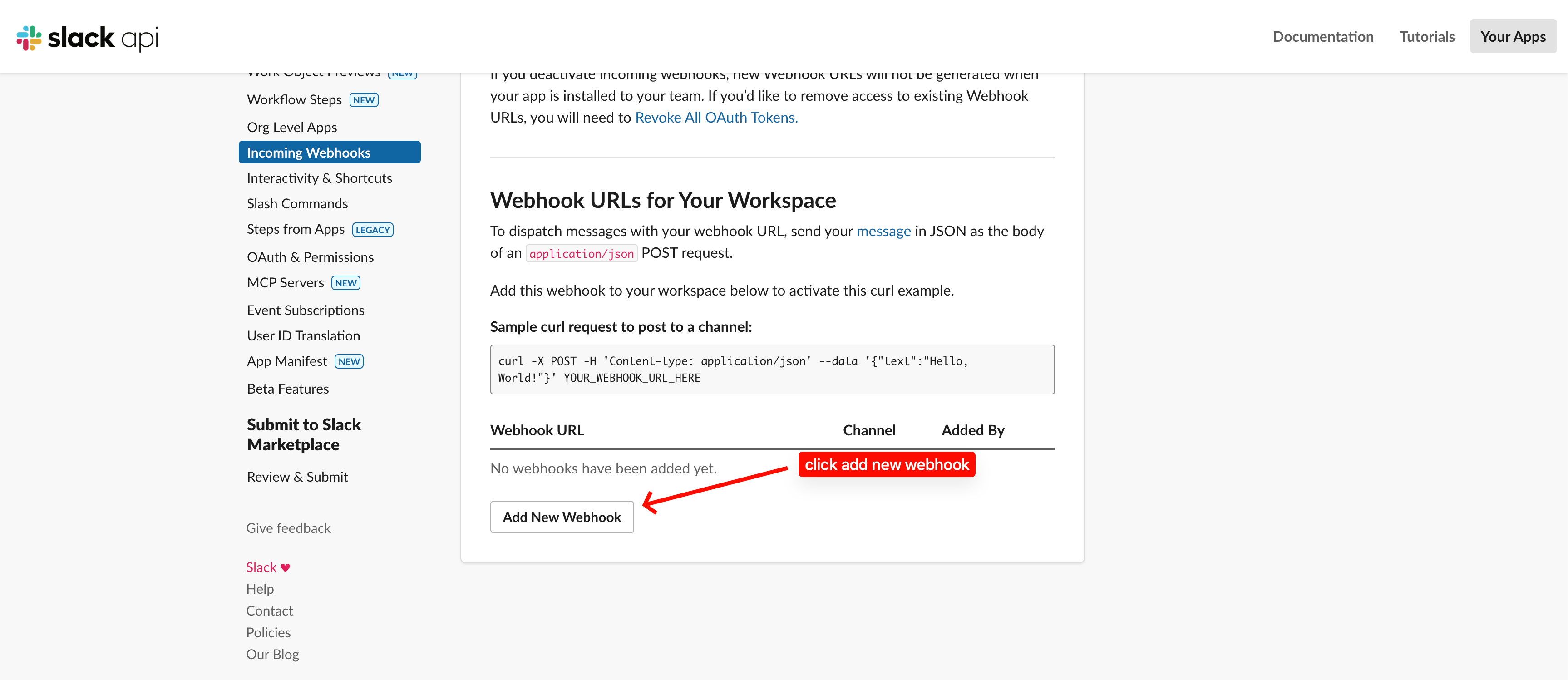
- 5Add a new webhookScroll to Webhook URLs for Your Workspace and click Add New Webhook.
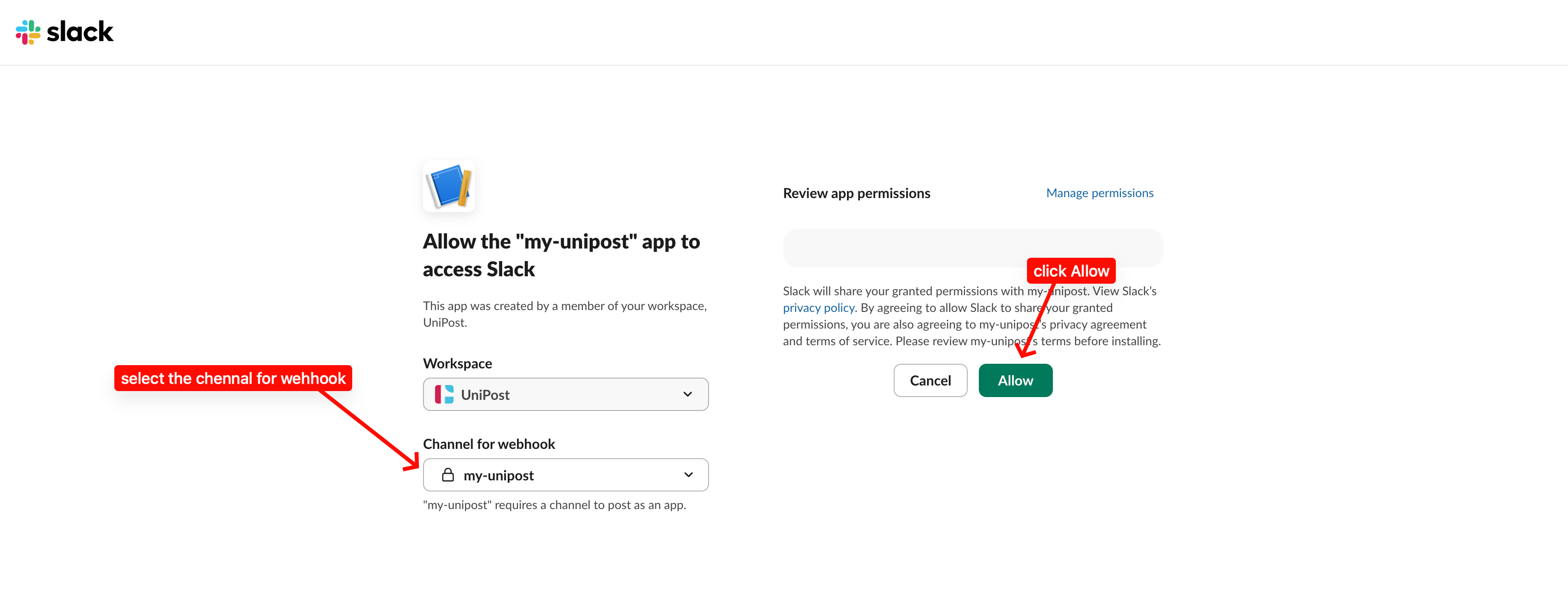
- 6Choose the channel and allow accessSelect the Slack channel that should receive UniPost alerts, then click Allow.
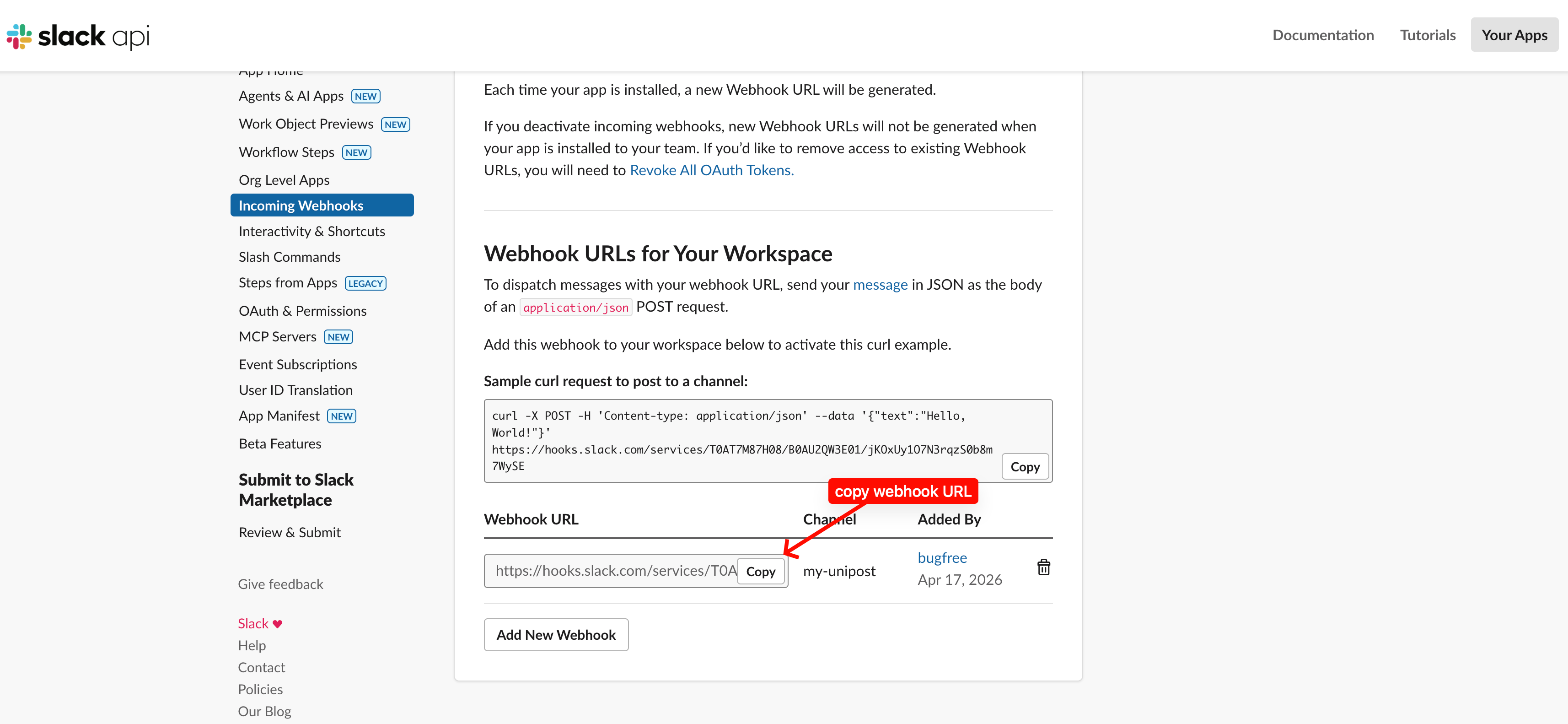
- 7Copy the webhook URLBack on the Incoming Webhooks page, click Copy next to the webhook you just created.
Paste the URL into UniPost
- Open Settings → Notifications
- Click Add channel → Slack Webhook
- Paste the webhook URL from Slack
- Optional — add a label such as
#ops-alerts - Save, then click Test
Next: after the channel shows as Verified, open the Subscriptions table and turn on the alerts you want.
Troubleshooting
| Symptom | Likely cause | Fix |
|---|---|---|
| UniPost rejects the URL at save | URL does not start with https://hooks.slack.com/ | Copy the Webhook URL from Slack's Incoming Webhooks page — not the OAuth or app URL |
| Test sends but nothing shows in Slack | The Slack channel was archived or the webhook was revoked | Open the Slack app's Incoming Webhooks page and confirm the webhook still exists |
| Only some events land | Event subscription is off for that channel | Toggle the event on in the Subscriptions table in UniPost |